


Hand Raise Alert in NavigateTXST
Bobcats know how to ask for help when needed! NavigateTXST's Hand Raise Alert feature allows you to stay in charge of your TXST experience. You can submit this alert at any time to indicate that you need help related to registration, holds, advising, and more.
After an alert is raised, you will receive an email letting you know which area you have been referred to. A representative from that area will contact you directly and get you connected with the resources you need. You can also access this feature on your desktop.
What is a Hand Raise?
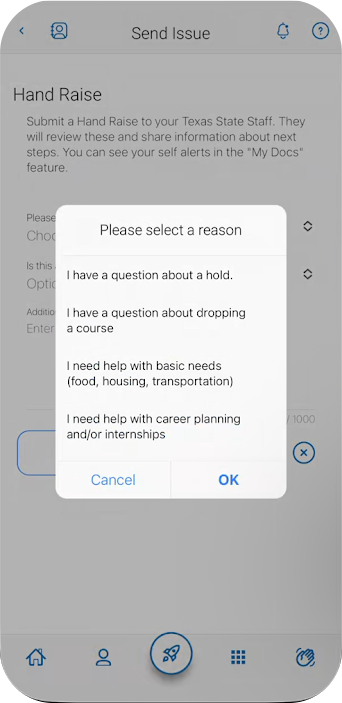
The NavigateTXST app has a "Hand Raise Feature" that lets you connect virtually with a TXST staff member about a specific topic. You can also access this feature on your desktop.
Hand Raise examples include:
- I need help with Academic Planning (examples: course registration, holds, dropping a course, or changing my major)
- I need help with Basic Needs (examples: food, housing, transportation)
- I need tutoring or academic assistance with a class
- Help with connecting with campus, getting involved, or volunteering
- Support with career planning, internships, and more!
By selecting a reason for raising your hand, you'll be connected with a TXST staff member who can answer your question to ensure you get the right information and assistance.
Note for Graduate Students
Graduate students cannot access the Hand Raise Alert feature. Please contact the Graduate College, your Graduate Advisor, or One Stop, depending on the type of academic progress support you need.
How to Submit a Hand Raise Alert
- Log into the NavigateTXST Desktop or download the NavigateTXST mobile app.
- Next, select the green "Hand Raise" icon or the + button in the top corner on desktop view.
- Click the blue “Create a Hand Raise” button.
- You will be directed to the Hand Raise Alert form.
- Complete the form and select "Submit."
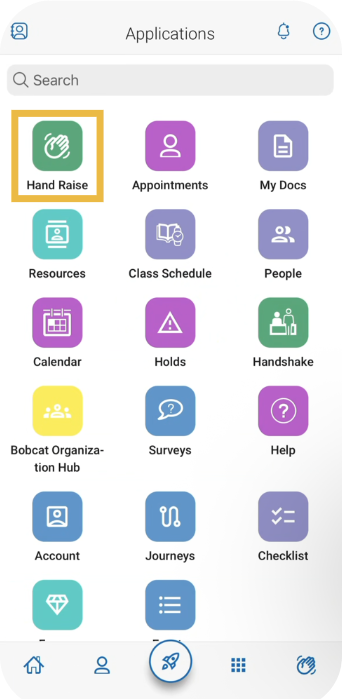
Step 1: Select the Hand Raise icon
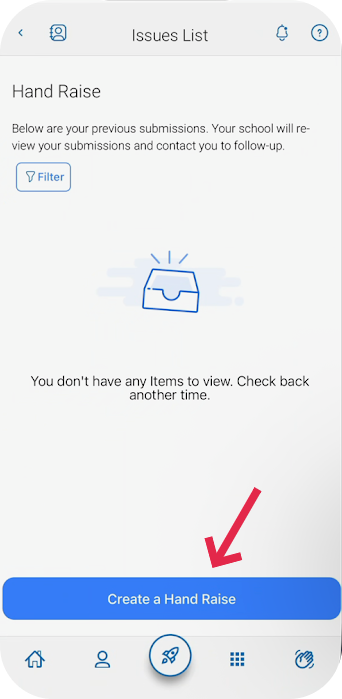
Step 2: Select "Create a Hand Raise"
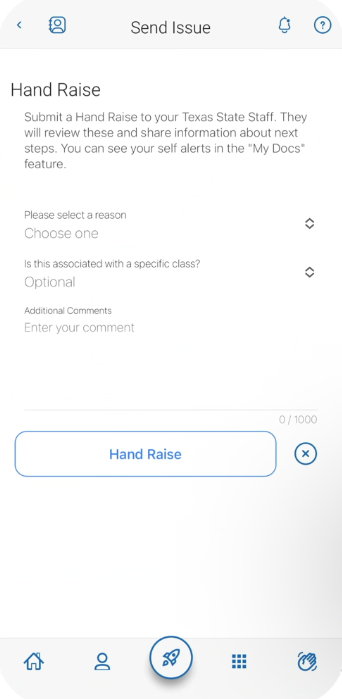
Step 3: Select a reason, course & add a note
Download NavigateTXST
Downloading the NavigateTXST app can make it easier to submit a Hand Raise Alert. NavigateTXST is refreshed daily. Any changes to your schedule, holds, or major will be reflected the following day.


Hand Raise Guide
Check out this guide for detailed information on using the Hand Raise feature from your mobile device or your web browser.
Frequently Asked Questions
Quick answers to common questions related to NavigateTXST.